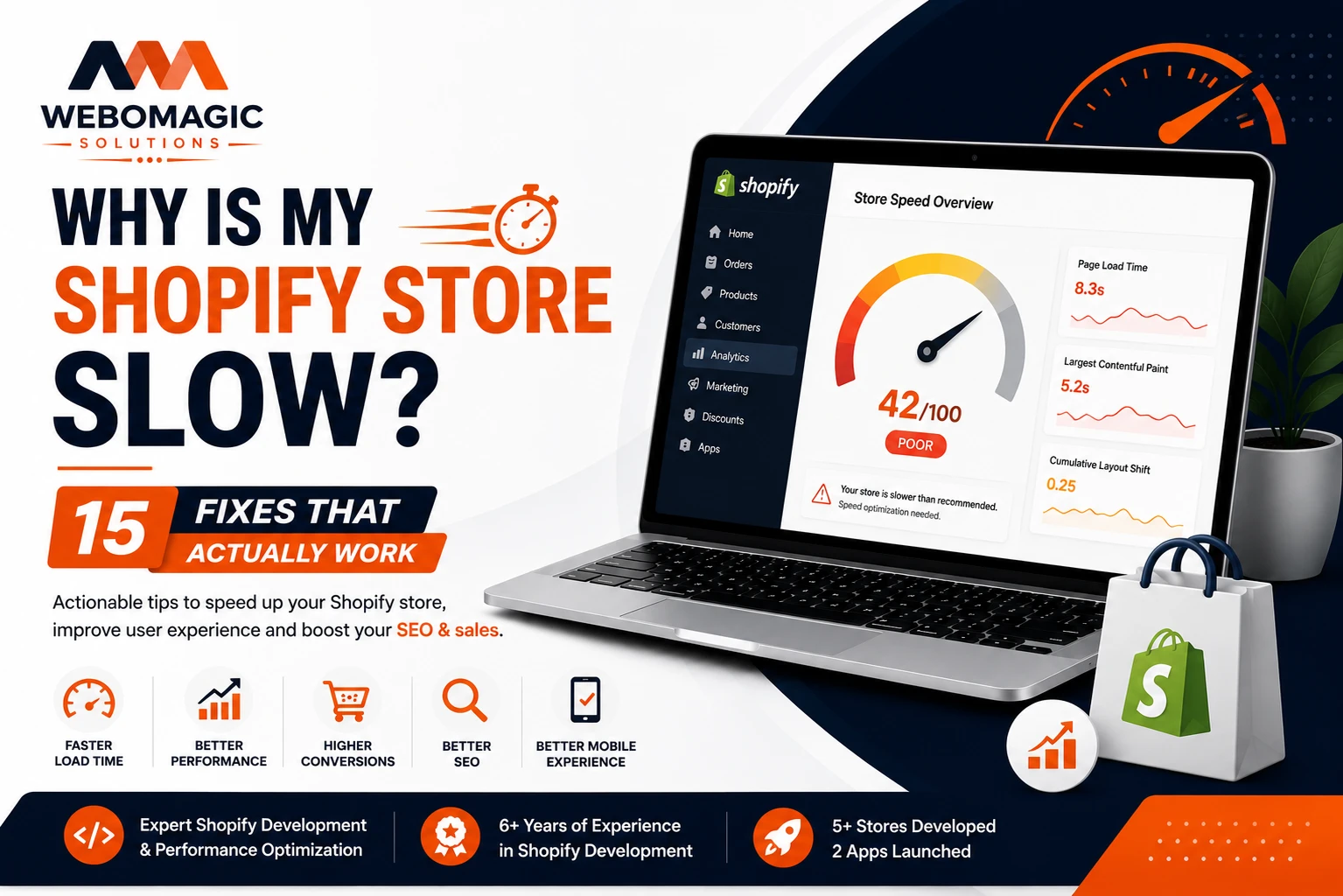
If your Shopify store feels sluggish, the problem is usually not one big disaster. It is a pile of small things, a heavy theme here, a bloated app there, and a homepage that is trying to do too much at once. The good news is that Shopify speed optimization usually starts paying off fast once you fix the right bottlenecks in the right order.
1. Figure Out What’s Actually Slow Before You Touch Anything
Before you change a single setting, find out where the drag really is. A homepage that loads fine on desktop can still be painfully slow on a product page, and a store that feels okay on Wi-Fi can crawl on a phone in the back of a coffee shop.
Start with your Shopify speed report and a tool like PageSpeed Insights. You want a baseline, not a guess. Look at overall loading time, the speed score, and any obvious page-specific lag. If your homepage looks decent but product pages are dragging, that points to product media, app embeds, or variant scripts instead of a theme-wide problem.
What to check first in your Shopify speed report
Open the report and scan for patterns, not just the score. A low score on one page type, such as collection pages, often means that one template is carrying too much weight. If the homepage is slow across the board, that usually points to theme design, scripts, or an overbuilt hero section.
The point is to get a baseline you can compare after each fix. Otherwise, you end up making changes that feel productive but do nothing. That happens more often than most store owners want to admit.
A quick “is it really slow?” reality check
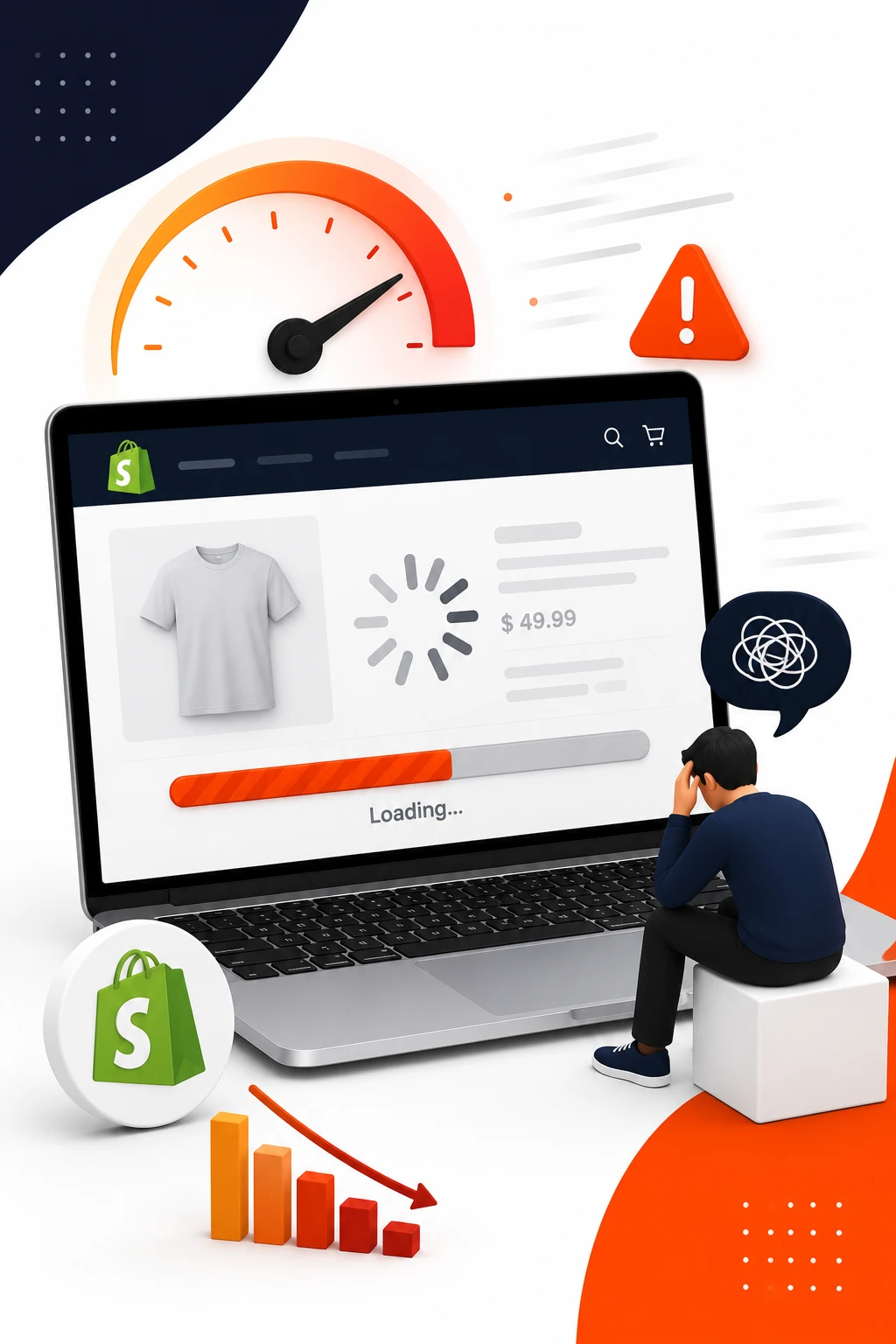
Test your store on a normal phone, on a normal connection, not on your laptop in a fast office. Open the homepage, then a product page, then a cart page. If the page flashes white for a second before content appears, or buttons lag when you tap them, that is real slowdown, not just a lab score.
A phone in hand tells you things reports miss. You notice sticky headers that eat half the screen, pop-ups that jump in late, and menus that take a beat too long to open. That is the kind of friction that quietly hurts conversions.

2. Fix the Obvious Stuff in Your Theme First
Theme issues are usually the quickest win in Shopify performance optimization because they affect every page at once. A theme can be beautiful and still be heavy as a suitcase packed with bricks.
The usual suspects are oversized hero sections, slider overload, too many custom sections, and fancy animation that looks nice in a demo but loads like molasses in real life. If your store is Shopify loading slowly, theme cleanup should be near the top of the list.
Cut back on homepage clutter
Homepage clutter is sneaky. A giant banner, two pop-ups, a featured collection grid, a testimonial strip, an Instagram feed, and a countdown timer can each seem harmless on its own. Put them together, and the first screen turns into a traffic jam.
Aim for one clear message above the fold. One strong hero image or short video, one headline, one call to action. If your homepage needs to do everything at once, it usually ends up doing nothing well.
Swap in lighter theme settings
Many themes ship with extra effects turned on by default, things like parallax motion, autoplay sliders, animated text, and heavy fades. Those settings add weight and delay the moment when a page feels usable.
Simplify where you can. Replace a carousel with a static image. Turn off motion that does not help sell anything. Keep the design clean, because a fast store often looks more confident than a busy one anyway.
3. Shrink Your Images the Right Way
Large images are one of the easiest ways to drag down Shopify page speed optimization. You can have a gorgeous store and still end up with huge files that slow everything down, especially on mobile.
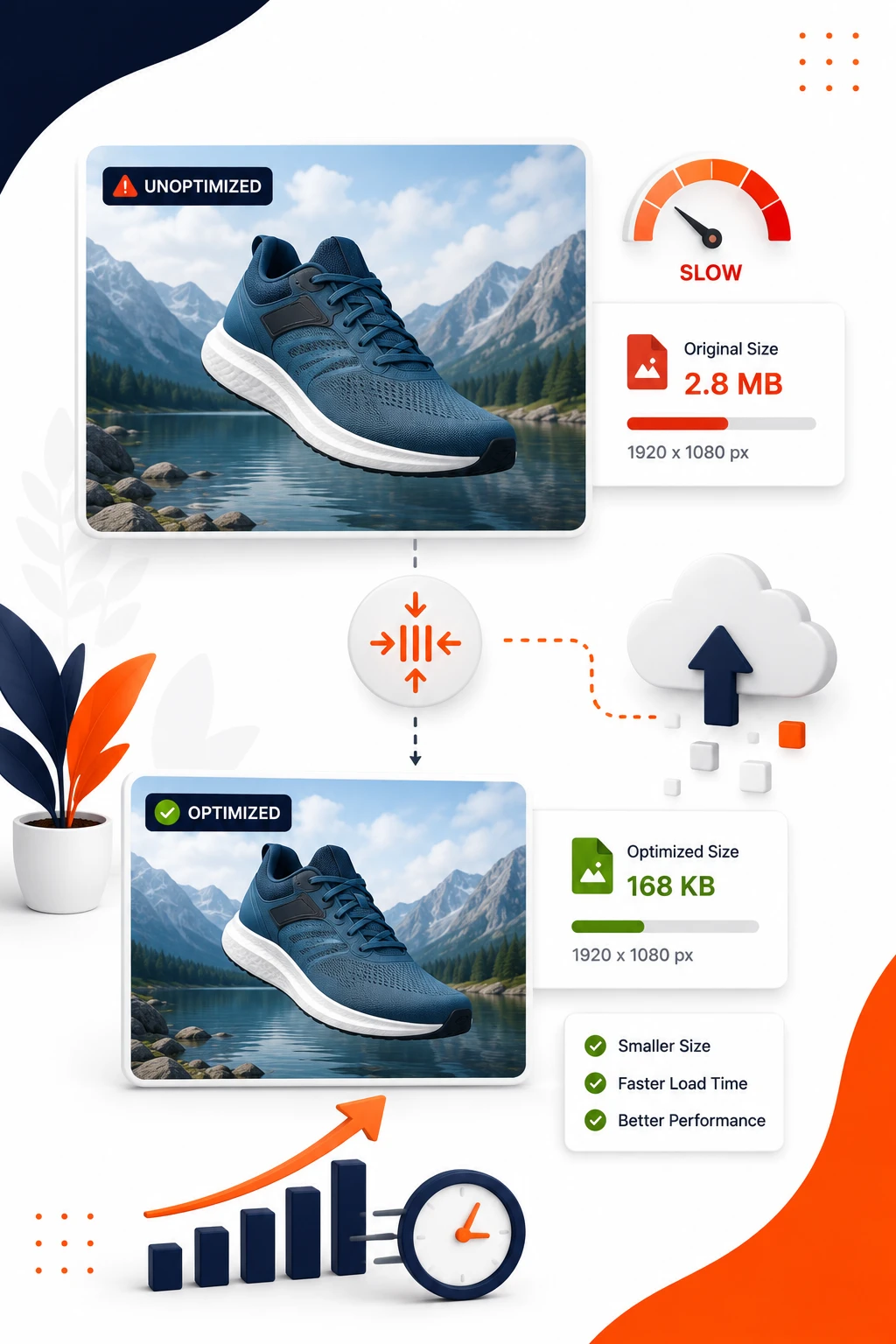
The fix is not just compression. You need the right size, the right format, and the right level of quality for each spot on the site. A blog card thumbnail does not need the same file weight as a full-width product image.
Resize images to the size they’re actually shown
This mistake shows up everywhere. Someone uploads a 4000 pixel image to fill a 600 pixel product tile, then wonders why the store feels heavy. The browser still has to work through that giant file before shrinking it down.
Match the image size to the display size as closely as possible. Collection thumbnails, blog cards, and small trust badges should all use smaller files. Save the big files for places where the image really fills the screen.
Use compression before upload
Compression strips out file weight without making the image look cheap. Even a small reduction, say from 1.8 MB to 350 KB, can make a noticeable difference on a mobile connection.
Run product photos through compression before they hit Shopify. You keep the quality shoppers need, but you remove a lot of the baggage. Most people will never notice the difference visually, though they will feel the page load faster.
Pick the right format for the job
JPEG works well for photos. PNG makes sense for graphics that need transparency. WebP is often the smarter choice for modern ecommerce images because it usually gives you smaller files without obvious quality loss. GIF should be rare, because it can get heavy fast.
The format matters more than most people think. A store full of unnecessary PNGs is like shipping every package in a wooden crate. It works, but it is not elegant.

4. Turn Off Heavy Apps You Don’t Need
Apps are one of the biggest reasons a Shopify store slow issue shows up out of nowhere. Each app can add scripts, widgets, or background calls that keep the browser busy long after the page looks loaded.
The trap is simple. A store owner installs an app for a holiday promo or a one-time feature, then forgets it is still loading code on every page. That dead weight adds up fast.
Spot hidden app scripts
Look for app embeds, leftover snippets, and script tags that still live in your theme after an app was removed. Some apps leave behind code in the header, footer, or product template, and that code keeps running even when the app is no longer visible.
Audit your active apps and ask a blunt question: does this app earn its spot on every page? If not, move it out. A clean stack is usually faster than a crowded one.
Keep the apps that earn their spot
Some apps are worth the cost because they directly support sales or operations. Others are nice to have, but not at the expense of speed. If an app only gets used once a month and slows every product page all day, that is a bad trade.
Judge apps by impact, not habit. If removing one app makes the site noticeably snappier, that is a strong signal that it was doing more harm than good.
5. Clean Up Third-Party Scripts and Tracking
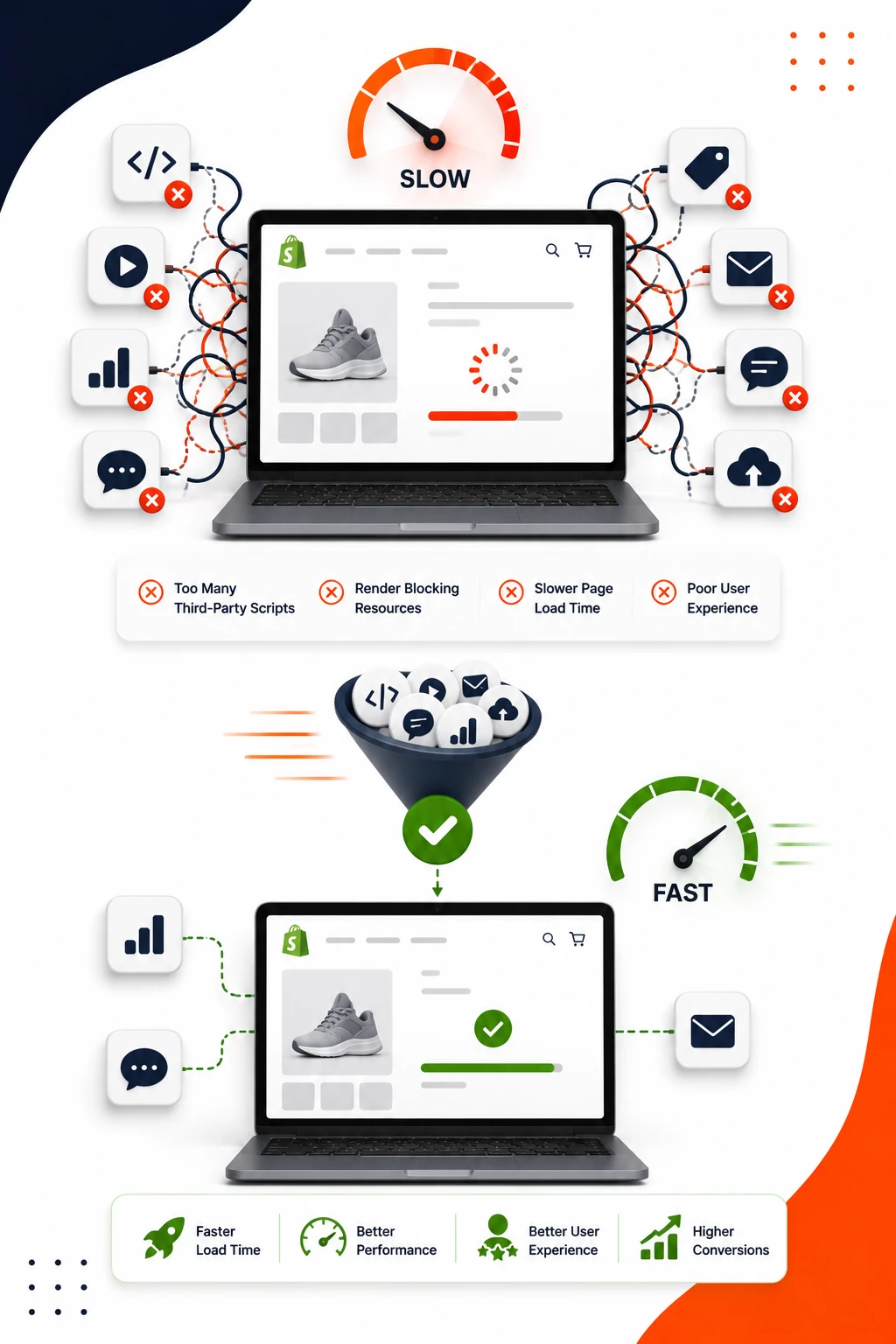
Marketing tools can quietly slow your store more than almost anything else. Chat widgets, review apps, heatmaps, A/B testing tools, and analytics tags all ask the browser to do extra work before the page feels finished.
The annoying part is that each individual script often seems harmless. The combined effect is where the pain starts.
Move marketing tags into one place
When tags are scattered across the theme, product pages, and app settings, you end up with script sprawl. A cleaner setup makes it easier to see what is actually firing and what can be delayed.
Using one organized place for tracking is not just neater, it reduces chaos. It also makes Shopify store performance easier to debug later, because you know where the noise is coming from.
Remove duplicate tracking
Double-firing pixels are common. So are repeated analytics snippets from old installs, duplicate chat codes, and multiple versions of the same ad script. Besides wasting load time, they make your data messy.
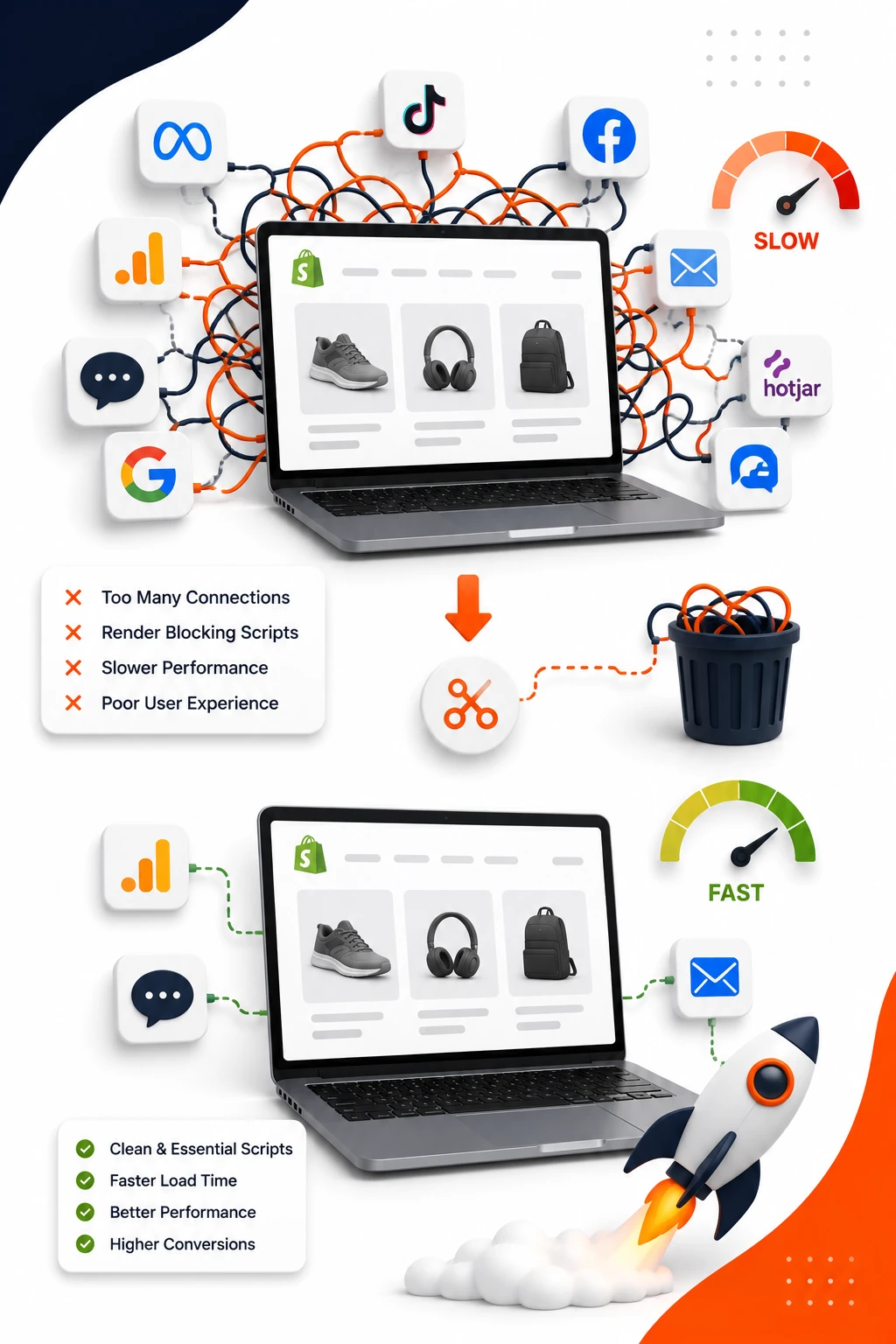
If a tag exists in two places, remove one. Simple. A lot of speed problems disappear once the browser stops doing the same job twice.

6. Simplify Your Product Pages
Product pages sell, so they deserve attention. But they also become a dumping ground for every idea anyone has ever had: extra galleries, autoplay video, swatches, tabs, trust badges, bundles, upsells, and sticky add-to-cart bars.
Too much of that, and the page feels like a crowded kitchen counter. You can still cook dinner, but not gracefully.
Trim the gallery without hurting the sale
Keep the strongest images and cut the rest. A product page does not need 18 nearly identical angles if 6 do the job. Add detail shots where they support the decision, especially for texture, fit, or scale.
If video helps, use it with a purpose. A short clip showing the product in use often beats a long, polished loop that hogs load time. Better storytelling, lighter page.
Make variant logic lighter
Variant selectors can turn ugly fast, especially with color swatches, custom logic, and extra scripts layered on top. Every added option gives the browser more to process, and shoppers more chances to hesitate.
Keep the selection flow simple. If your product has dozens of variants, make sure the interface stays fast and clear. Confusion on a product page is bad enough. Slow confusion is worse.
7. Use Lazy Loading Where It Makes Sense
Lazy loading means content waits to load until it is close to appearing on screen. That is great for long pages, big image galleries, and blog archives, because the browser can focus on what shoppers see first.
The catch is that lazy loading can backfire if you apply it too broadly. You do not want your hero image, logo, or top navigation to appear late.
Protect the first screen
The first screen should load immediately. That includes the main banner, the logo, primary navigation, and anything a shopper needs to orient themselves. If the top of the page stutters, the whole store feels off.
Think of it like opening the front door. The entryway should be ready before the rest of the house is staged.
Don’t lazy-load everything
Lazy load the content below the fold, not the key content above it. When important visuals or text wait too long, the page feels broken even if the speed score looks better on paper.

The right balance is simple: protect the first view, delay the rest. That gives you a better experience and usually better Shopify Core Web Vitals too.

8. Reduce Redirects, Broken Links, and Extra Hops
Redirects add friction because the browser has to stop, ask for a different address, and then continue. One redirect is manageable. A chain of them starts to feel like taking side streets through town just to get to the grocery store.
Old campaign links, product updates, and collection changes often leave behind messy paths. Those little detours hurt Shopify performance optimization more than people expect.
Clean up old URLs
Check old product URLs, renamed collections, and discontinued landing pages. If a link now sends shoppers through two or three hops before reaching the right page, tighten it up.
This matters during promotions too. A paid ad that lands on a chain of redirects wastes both money and attention. Fast paths convert better.
Fix broken internal links
Broken internal links are bad for speed and worse for usability. Shoppers hit dead ends, crawlers waste time, and your store feels poorly maintained.
Fix them as soon as you spot them. A clean internal path keeps the shopping flow smooth, which is half the battle in ecommerce.
9. Make Your Liquid and Theme Code Less Busy
Shopify Liquid optimization sounds technical, but the idea is simple. Your theme code decides how much work Shopify has to do before the page appears.
Overbuilt templates, nested snippets, and too many loops can make pages heavier than they need to be. You do not need to become a developer to understand the principle: less unnecessary code usually means faster rendering.
Watch out for excessive Liquid loops
Loops are handy when you need to display products, collections, or metafields. The problem starts when a page keeps looping through big datasets just to show a small amount of content.
That gets expensive on larger catalogs. If a homepage section is pulling more data than it needs, trim it back. Faster rendering means shoppers see content sooner.
Remove unused snippets and templates
Old code has a habit of hanging around like boxes in a garage. It takes up space, and sometimes it still gets in the way even if nobody uses it anymore.

Delete unused snippets, stale templates, and leftover sections from past experiments. If your theme has grown over time, this cleanup alone can make Shopify loading slowly issues easier to spot and fix.

10. Stop Overloading the Homepage With Extras
Your homepage should guide, not perform. Yet many stores pack it with every possible attention grabber, then wonder why the first screen feels heavy.
Sliders, announcement bars, pop-ups, testimonials, countdown timers, and autoplay video all compete for attention. One or two can help. All at once is too much.
Replace sliders with one strong message
Sliders feel helpful, but most shoppers never wait for slide two. A single strong hero with a clear value proposition usually works better and loads faster.
If you want to showcase more, do it lower on the page. Let the homepage breathe. A cleaner first impression often improves both speed and conversion.
Cut one-time attention grabbers
If a widget only serves a narrow goal, think hard before keeping it on the homepage all day. Pop-ups that fire immediately, countdown bars that never end, and floating promos that cover content all add friction.
The homepage should earn trust first. Once that happens, you can ask for the email, the sale, or the second click.
11. Use Video More Carefully
Video can sell, no question. It shows product movement, scale, texture, and real-world use better than still photos. But video can also slow a store down fast if it loads too early or too large.
A little restraint goes a long way here.
Swap autoplay for click-to-play
Autoplay video is expensive on mobile. It uses bandwidth before the shopper even chooses to watch, and that is a bad bargain on weaker connections.
Use a thumbnail or lite embed instead. Let the shopper choose when to play. You keep the storytelling power without making every visitor pay the loading cost.
Load video only when it earns its keep
Put video where it helps the decision, not where it just fills space. A product demo on a conversion-focused landing page makes sense. A background loop on every page usually does not.
If a still image tells the story just fine, use the still image. Speed wins more often than people think.
12. Improve Mobile Speed First
Desktop can be misleading. A store may feel fine on a laptop and still crawl on a phone, because mobile screens are smaller, connections are weaker, and Shopify Core Web Vitals tend to expose every extra ounce of weight.
If your store is Shopify loading slowly on mobile, fix that first. That is where a lot of revenue lives.
Trim mobile-only clutter
Mobile headers often carry more baggage than you realize. Extra icons, bulky drawers, oversized pop-ups, and sticky elements can crowd the screen before a shopper even starts browsing.
Simplify the mobile experience. Keep the key actions visible and remove anything that steals space without earning it.
Test on a real phone, not just desktop tools
Lab tools are useful, but a real phone tells a better story. Tap through your store with your thumb. Open menus, add a product to cart, and check how long it takes for the page to feel ready.
That live test catches awkward delays that a report might soften or hide. If it feels slow in your hand, it is slow.
13. Check Your Checkout and Cart Experience
Cart and checkout are close to the money, so even small delays matter. This is especially true for Shopify Plus merchants with custom logic, extra scripts, or custom development inside the buying path.
The goal is simple: make the final steps feel almost invisible.
Keep cart code light
Cart drawers, upsell widgets, shipping bars, and discount scripts can all slow the path to purchase. A cart that looks busy can also feel hesitant, which is the last thing you want at checkout time.
Keep only the features that truly help. If a cart add-on adds friction without raising average order value, cut it.
Avoid checkout add-ons that don’t pull their weight
Custom checkout tweaks can be useful, but too many of them create drag. A small visual delay at checkout feels bigger than the same delay on a blog post, because shoppers are already deciding whether to buy.
Treat checkout changes carefully. Fast, simple, and trustworthy usually beats clever.
14. Use CDN and Hosting Features Shopify Already Gives You
One reason Shopify is popular is that it already handles a lot of the hard infrastructure work. You usually do not need to chase hosting fixes the way you might on another platform.
The CDN piece matters here. A content delivery network serves files from a location closer to the shopper, which helps pages start loading faster. Shopify already gives you a lot of that benefit built in.
Know what Shopify already covers
If the platform is already handling delivery, caching, and core infrastructure, do not waste time trying to “fix hosting” when the real problem is theme weight or app bloat. That is a common detour.
Focus on the parts you can actually control: images, scripts, theme code, and page structure. That is where Shopify optimization usually pays off.
Don’t add tools that duplicate platform features
Some apps promise speed but just add another layer of scripts, redirects, or weird overrides. If a tool duplicates what Shopify already does well, it may be slowing you down while claiming to help.
Less duplication, fewer surprises. Pretty good rule for ecommerce.
15. Know When to Bring in a Shopify Developer or Speed Audit
At some point, DIY cleanup stops being enough. If your theme is custom, your app stack is heavy, or your Core Web Vitals are still poor after the obvious fixes, a Shopify speed audit makes sense.
This is also the moment to bring in a Shopify developer if the slowdown is tied to custom code. A careful change in Liquid or theme files can help a lot, but the wrong change can break product pages, cart behavior, or app integrations.
Hire help when code changes need care
If your store depends on custom sections, advanced filtering, bundle logic, or a heavily edited theme, be cautious. Performance work in a custom environment is not the place to guess.
A good Shopify speed optimization service should explain what is slow, why it is slow, and what will change after the fix. If that answer is fuzzy, keep looking.
Ask for fixes tied to measurable results
Speed work should come with before-and-after checks. Look for changes in load time, speed score, and Core Web Vitals, not vague promises about making the site “feel better.”
The best sign of progress is simple. Pages open faster, carts respond quicker, and shoppers stop waiting around for the store to catch up.
Once you understand where the slowdown lives, fixing it becomes much less random. Start with the biggest obvious drag, test after each change, and do not let a pretty homepage hide a slow one.